 Oleg Isonen
1b48716ff4
Oleg Isonen
1b48716ff4
## Summary

- Document how people create, connect, edit, validate, and publish
MDX-backed Content Blocks.
- Document the complete MCP workflow, including scoped expression
sources, frontmatter updates, diagnostics, conflicts, and disconnect
behavior.
- Add two focused screenshots for the human workflow.
- Fix issues found by a low-reasoning MCP agent while executing every
documented workflow.

Ref #6182

## Implementation notes

- Connection confirmation uses the public `confirmReplacement` field
because `confirm` is reserved as a hidden transport field.
- MCP edits frontmatter with `update-content-block-frontmatter`;
materialized MDX elements are not persistent targets for generic
instance mutation tools.
- Reload now intentionally discards a conflicted local source and
accepts the Asset's latest storage revision before an edit is reapplied.
- Generated MCP documentation and runtime contracts are updated from
their source files.

## Checklist

- [x] Document the human MDX Content Block workflow.
- [x] Document MCP discovery, connection, editing, diagnostics,
frontmatter, dynamic sources, conflicts, and disconnection.
- [x] Add only screenshots that clarify otherwise hard-to-describe UI
steps.
- [x] Test every documented MDX capability through the local MCP CLI
with a low-reasoning agent.
- [x] Reproduce and fix the replacement-confirmation schema mismatch.
- [x] Reproduce and fix persistent-session conflict reload and reapply.
- [x] Add regression tests that failed before each product fix and pass
afterward.
- [x] Regenerate runtime contracts and generated MCP documentation.
- [x] Review authoritative `docs/` content and update affected pages.
- [x] Run affected tests, typechecks, formatting, and diff checks.

## Verification

- Project Build: 208 affected tests passed.
- Content Engine Asset session: 8 tests passed.
- CLI documentation tests: 14 tests passed.
- MCP docs generator: 3 tests passed.
- Content Engine, Project Build, CLI, and MCP docs typechecks passed.
- `pnpm oxfmt --check` passed.
- `git diff --check` passed.
- Low-reasoning MCP evaluation passed all documented workflows,
including a real two-client revision conflict, reload, reapply, and
final saved inspection.
2.0 KiB
description
| description |
|---|
| The XML Node is used to create an XML document, such as a sitemap. |
📘 XML Node
{% hint style="info" %} Webstudio automatically generates a sitemap for static pages such as Home and About. If you are integrating with a CMS, you can use this component to create a sitemap for CMS data. {% endhint %}

The component appears when Document type is XML
How to use the XML Node component
-
Go to Page Settings > Document Type and select XML from the dropdown
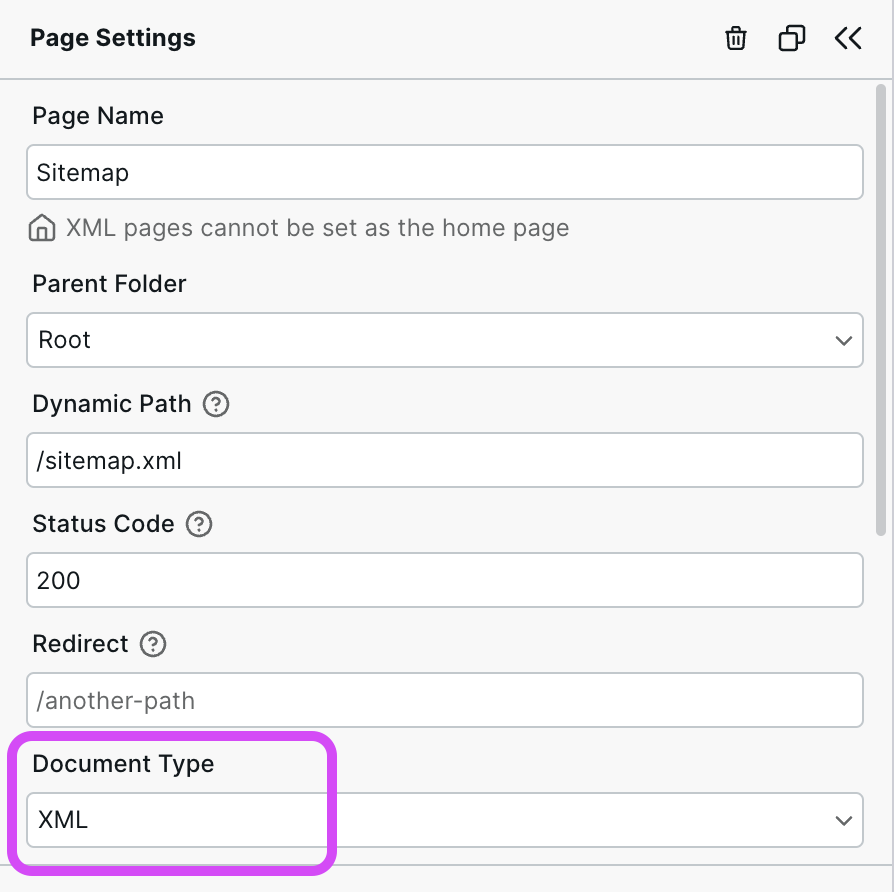
-
Go to Components > XML and add XML Node (this component won’t show until Step 1 is completed)
-
Set the tag and text content (e.g., “loc” and “https://example.com)

Tips
- XML Nodes can be nested within each other
- Use Collection to iterate over a list of data
- A sitemap skeleton is available in the Marketplace
Include the static sitemap
While you can use the autogenerated sitemap for static pages and create a separate sitemap for dynamic pages, you can also combine the two.
To include the static sitemap data in your custom sitemap, follow these steps:
-
Create a page
-
In the page settings, set the Document Type to XML
-
Set the page path to /sitemap.xml. This will override the default sitemap.
-
Fetch the static data by clicking Create Variable > System Resource (Type) > Sitemap (Resource)

-
Use a Collection to iterate over the static sitemap data

Related
- XML Time – ISO date formatting for feeds
- Collection – Iterate over feed items
- Head Slot – Add meta tags